Setting up your own AI assistant sounds intimidating. It isn't. OpenClaw is designed so that a non-developer can have a private, always-on assistant running in an afternoon — and if you start from a ClawBox, in about five minutes.
This guide covers both paths: the fast path (a pre-configured ClawBox) and the DIY path (installing OpenClaw yourself). By the end you'll know exactly what to choose and in what order.
What you actually need
Three things, no more:
- Hardware that can run 24/7. OpenClaw is meant to be always-on — handling email, follow-ups, and scheduled tasks while you sleep. That rules out your laptop. A small, low-power device (like an NVIDIA Jetson) is ideal: quiet, ~15W, and always available.
- An AI provider. OpenClaw can use cloud models (Claude, GPT, Gemini) per request, run local open models on-device, or mix both. You don't have to decide forever on day one.
- A way to talk to it. Telegram, WhatsApp, Discord, or the web interface. Most people start with Telegram.
The fast path: start from a ClawBox
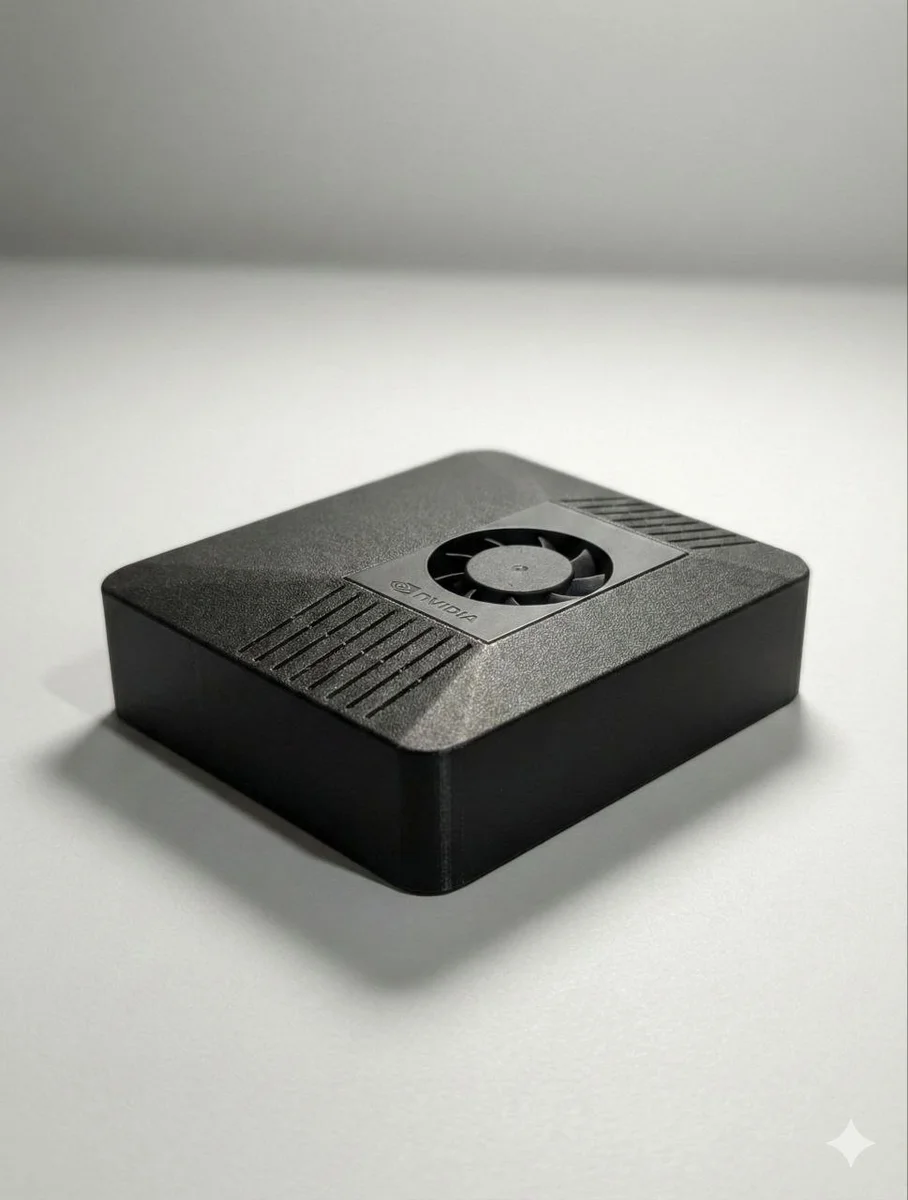
If you'd rather skip the assembly and configuration, a ClawBox ships with OpenClaw preinstalled on an NVIDIA Jetson Orin Nano. Setup is:
- Plug in power and network.
- Open the web interface and scan the QR code.
- Connect your messaging app and choose your AI provider.
That's it — you're delegating tasks in about five minutes, no terminal required. This is the path we recommend for anyone who wants the outcome, not the project.
The DIY path: install OpenClaw yourself
Prefer to build it? Here's the shape of it.
1. Prepare the device
Flash a clean Linux install onto your hardware (Jetson, mini PC, or a spare machine). Make sure it has network access and enough storage for your assistant's memory to grow over time.
2. Install OpenClaw
Install Node 20+ and pull OpenClaw. Docker is the cleanest route if you want isolation — see our OpenClaw Docker guide for the container setup. Start the gateway and confirm it's running.
3. Choose and connect your AI provider
Add an API key for Claude, GPT, or Gemini — or point OpenClaw at a local model to run fully offline. You can route different tasks to different models later; start with one.
4. Connect a messaging channel
Link Telegram via BotFather (our OpenClaw Telegram guide walks through allowFrom, pairing, and groups), or connect WhatsApp. Send a test message and confirm your assistant replies.
5. Give it a memory and a personality
OpenClaw keeps its memory in plain-text files. Set up its long-term memory and a short profile of who you are and how you like to work. The longer it runs, the more useful it becomes.
Choosing your AI provider
A quick rule of thumb:
- Want the best answers? Use a cloud model (Claude/GPT/Gemini) per request.
- Want total privacy or offline use? Run a local open model on the device.
- Want both? That's the point — use frontier models when quality matters, local models when privacy or cost does.
Going live: your first real tasks
Don't overthink the first day. Hand it one or two recurring chores:
- Triage your inbox each morning and draft replies.
- Remind you of follow-ups you keep forgetting.
- Run a repetitive browser task you do by hand today.
Once you trust it with those, you'll keep adding more. That's how a generic assistant becomes genuinely yours.
Common setup questions
Do I need to know how to code? No — the ClawBox path requires none. The DIY path needs basic comfort with a command line.
Does it have to be online? No. With a local model, OpenClaw runs fully offline. Cloud is optional, per request.
What hardware is enough? For a responsive always-on assistant, an NVIDIA Jetson Orin Nano (67 TOPS, 8GB) is the sweet spot. See our hardware requirements for the full picture.
The shortest path to "done"
If your goal is a working assistant rather than a weekend project, start from a ClawBox — OpenClaw preinstalled, your data on hardware you own, running in five minutes.